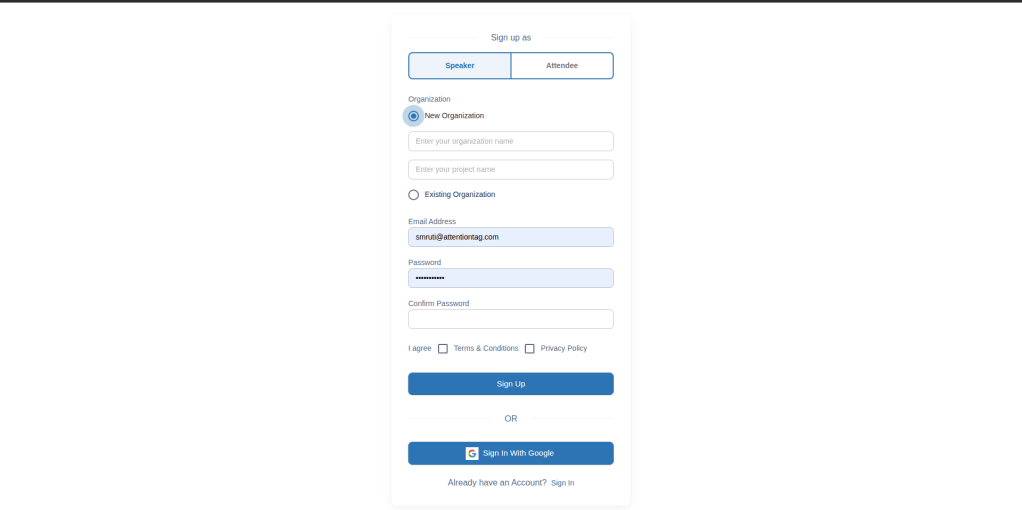
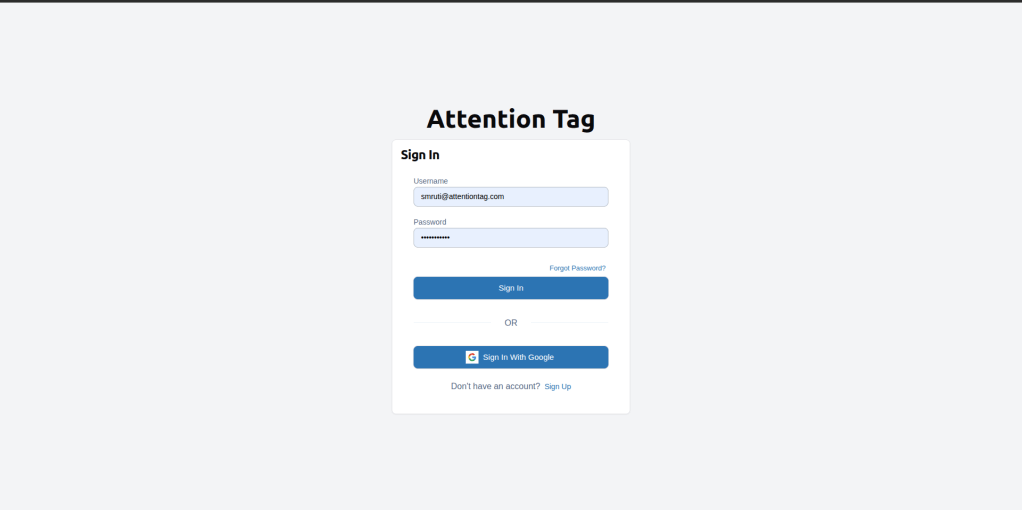
Real-time engagement analytics for your Zoom meetings, powered by AttentionTag's emotion AI.
Go to marketplace.zoom.us
Sign in using your Zoom credentials.
Search for Attention Tag Speaker App.
Click on "Add for Myself" or "Add for Others".
This will install the Attention Tag Zoom Speaker App. You should now be ready to monitor engagement and take actions leveraging AttentionTag's emotion AI and AI Assistants.
Log in to AttentionTag at app.attentiontag.com.
Go to the Meetings tab on the left menu.
Click on "Quick Meeting" and fill in the details: Title, Medium (Zoom), Meeting URL & Password, Lesson, Content, Start date, Duration (60 min).
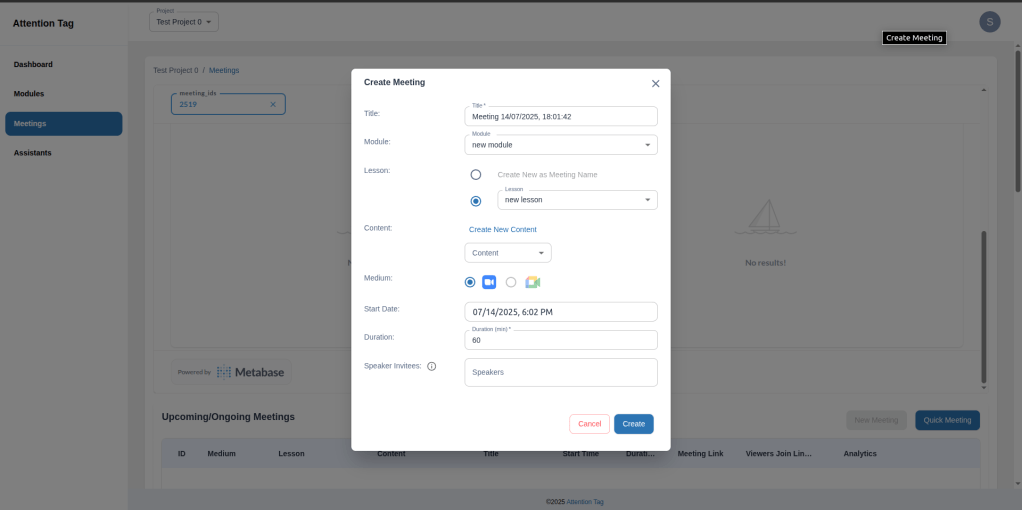
Click Create to launch the meeting. Share the attendee join link with participants.
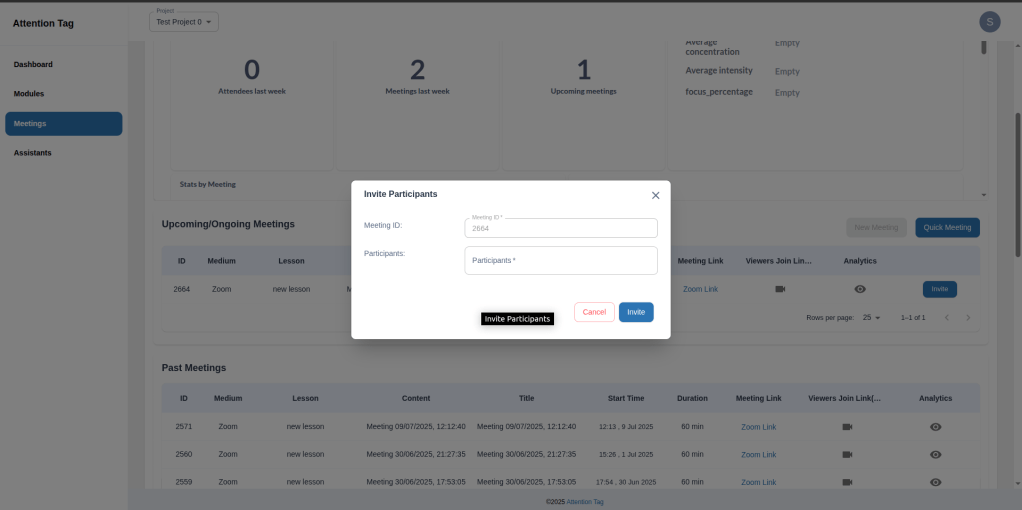
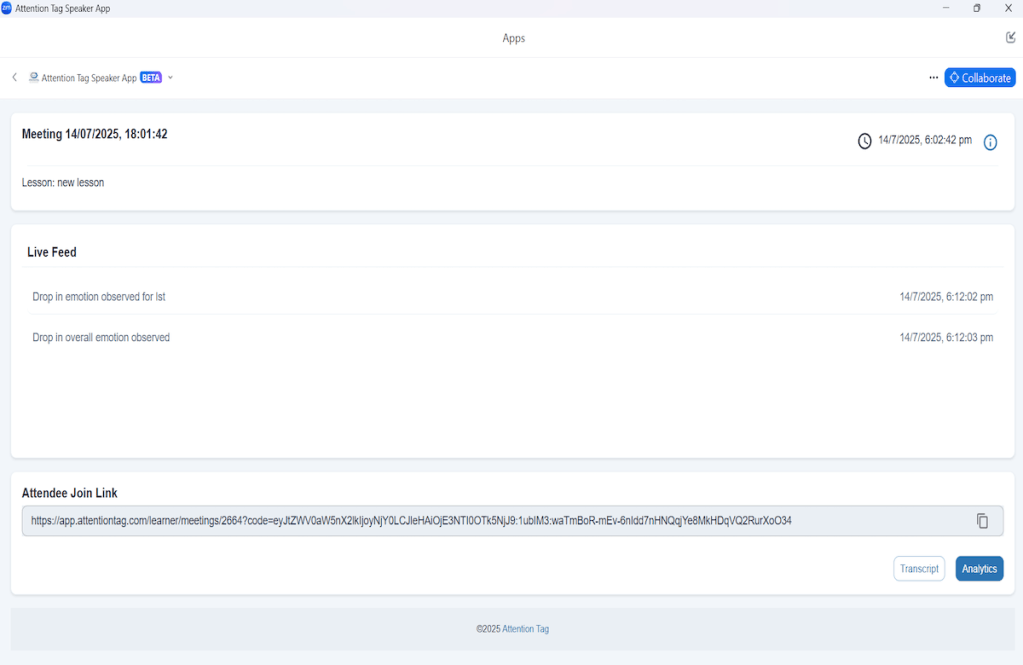
In the Zoom app, go to Apps and click the Attention Tag Speaker App to see live meeting details and engagement events.
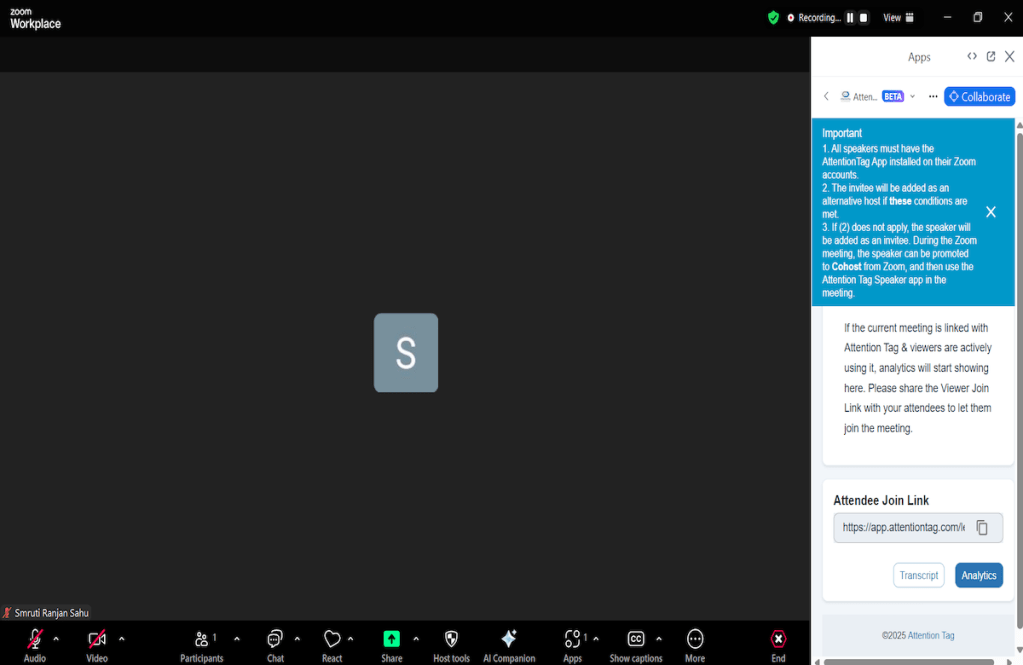
As a speaker, you will have a section within the Attention Tag app showing a live engagement feed — real-time feedback at both an individual and class level throughout the session.
Go to marketplace.zoom.us and sign in.
Click Manage at the top right, then Added Apps on the left pane.
Find the Attention Tag Zoom Speaker App, click Remove, select a reason (optional) and confirm.