Admin Guide

Adding AttentionTag to Your Microsoft Teams Organization

Using AttentionTag with Teams requires admin consent on behalf of the entire organization. Follow this guide to enable it.

You need to be an Organization Admin to complete the following steps. If you are not, share this page with your admin.

Steps

1

Go to the Microsoft Teams Admin Center:

https://admin.teams.microsoft.com/policies/manage-apps/
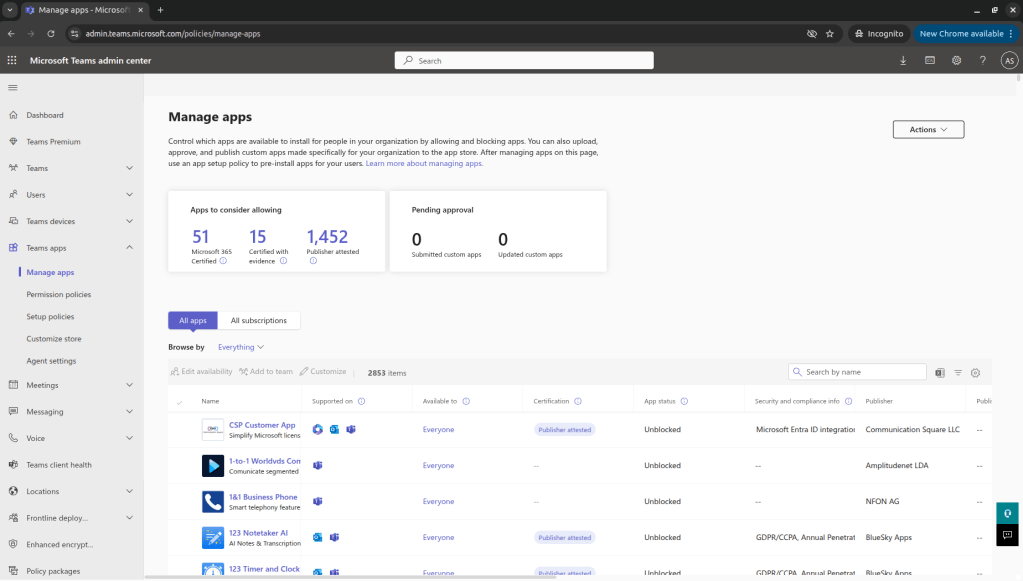
Microsoft Teams Admin Center — Manage Apps
2

In the search box, type "Attention Tag".
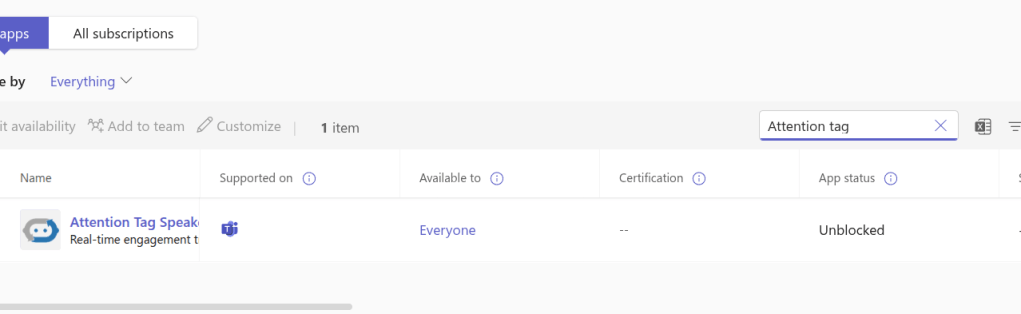
Search results showing Attention Tag Speaker app
3

Click on Attention Tag Speaker.

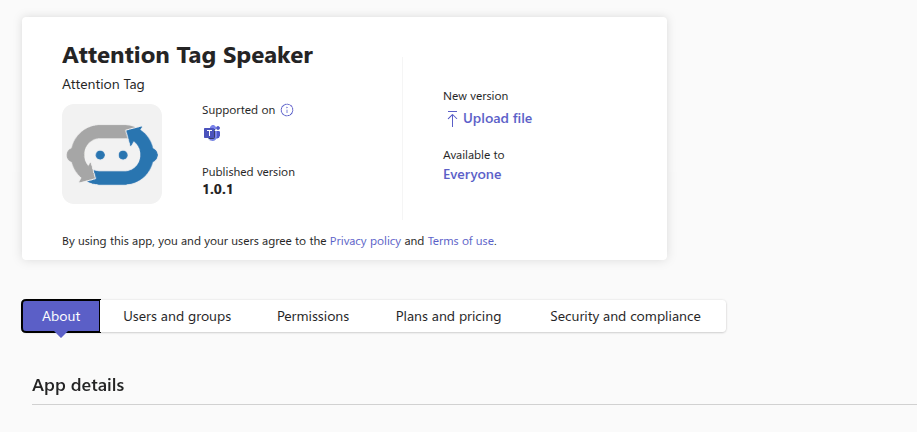
Attention Tag Speaker app page
4

Go to the Permissions tab and click "Grant admin consent".
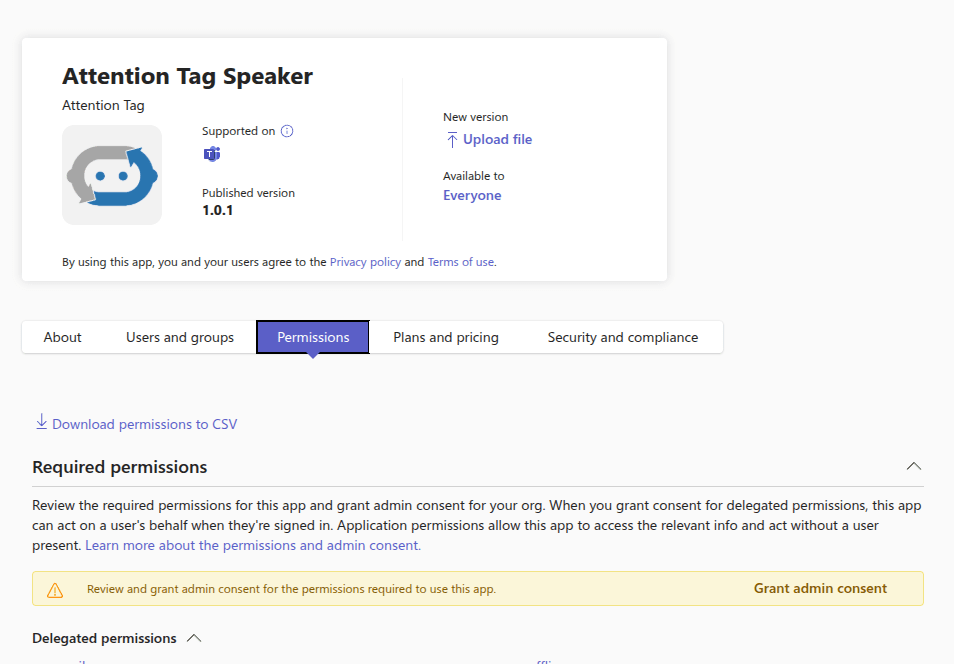
Permissions tab with Grant admin consent button
5

Verify success. Notify your team about the consent approval — they're now good to use AttentionTag with Microsoft Teams.

Admin consent granted successfully

Your team is now ready to use AttentionTag with Microsoft Teams.